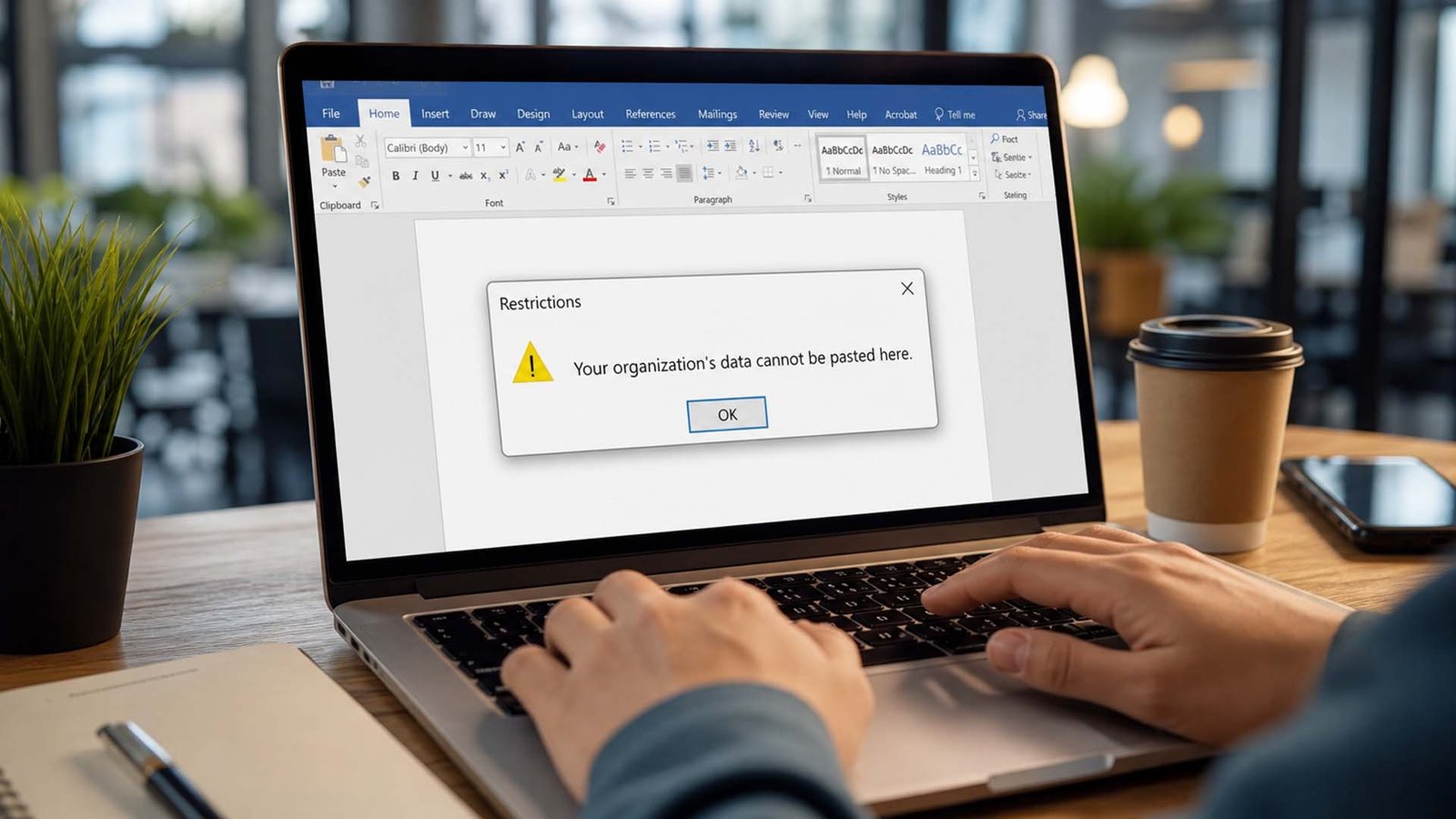
Have you ever tried to copy something from your work email and paste it somewhere else, but it just did not work? Instead, you saw a message saying “Your Organization’s Data Cannot Be Pasted Here.” It can feel strange and even a bit annoying at first.
Many people face this problem while using work apps. You may think something is broken. But the truth is, nothing is wrong with your device. This message is actually there for a reason, and it is more common than you might think.
The message “Your Organization’s Data Cannot Be Pasted Here” is usually linked to work systems and company rules. It often appears when you try to move data from one app to another, especially from a work app to a personal app.
In this guide, we will explain everything. You will learn what this message means, why it shows up, and how you can fix it step by step. By the end, you will understand it clearly without any confusion.
What Does This Error Mean?
The message “Your Organization’s Data Cannot Be Pasted Here” simply means that your device is not allowing you to paste certain data. This usually happens when the data comes from a work app like email or office tools.
When you copy something from a work app and try to paste it into another app, the system checks if it is allowed. If it is not allowed, the paste action is blocked. That is when you see this message.
This is controlled by a system called Microsoft Intune. It is used by companies to manage devices and protect their data. It decides where data can go and where it cannot.
So, in simple words, the error is not really an error. It is a safety rule. It is there to stop important data from going to unsafe places like personal apps or unknown websites.
Why This Error Happens
Now you may be wondering, why does this message show up at all? The answer is simple. It happens because your company wants to keep its data safe. That is the main reason behind it.
When you try to paste data into an app that is not approved, the system blocks it. For example, if you copy text from a work email and try to paste it into a personal app, the system may stop you.
This can also happen if you are using your personal phone or laptop but it is connected to your work account. Even though it is your device, it still follows your company’s rules.
So, the message “Your Organization’s Data Cannot Be Pasted Here” appears to protect private data. It makes sure that sensitive information does not go to the wrong place by mistake.
How Microsoft Intune Controls Your Data
To understand this better, let’s talk about how Microsoft Intune works in a simple way. It is a tool that companies use to control devices and apps.
This system can decide what you can do with your data. It can allow or block actions like copy, paste, save, or share. Everything is based on rules set by your company.
For example, your company may allow you to copy data between work apps only. But it may block you from pasting that data into personal apps like social media or private email.
This is why you do not always have full control. Even if the action feels simple, like copy and paste, it is still controlled by these rules in the background.
Different Levels of Copy-Paste Rules
Not all companies use the same rules. There are different levels of control for copy and paste. Some are very strict, while others are more relaxed.
In some cases, everything is blocked. You cannot copy or paste anything at all. This is the most strict level and is used for very sensitive data.
In other cases, copy and paste is allowed, but only between work apps. For example, you can copy from one work app and paste into another work app, but not into personal apps.
There is also a middle level where you can paste data into work apps but not out of them. And in rare cases, everything is allowed, but this depends on company settings.
Common Reasons Behind This Problem
There are many reasons why you may see “Your Organization’s Data Cannot Be Pasted Here.” One common reason is using an app that is not approved by your company.
Another reason could be outdated apps. If your Office or email app is old, it may not work well with the system rules. This can cause errors even when you are doing the right thing.
Sometimes the file you are using may be locked or not editable. If the file is in read-only mode, you may not be able to copy or paste anything from it.
There can also be small issues like file errors, hidden characters, or system bugs. Even too much text or special symbols can sometimes trigger the message.
Quick and Easy Fixes You Can Try
Before trying anything complex, you can start with simple steps. Many times, small fixes can solve the problem quickly without much effort.
First, try restarting your device. This may sound basic, but it often fixes small system issues. After restarting, open your app again and try copying and pasting.
You can also close the app and open it again. Sometimes apps get stuck, and a quick restart helps them work properly again.
If the issue still continues, try copying a smaller part of the text. This helps you check if the problem is with the content or with the system.
Update Your Apps to Fix the Issue
Another very important step is updating your apps. Old apps can cause problems because they may not support new rules or settings.
You can update your apps by opening any Office app, going to settings, and checking for updates. Make sure everything is up to date.
After updating, restart the app or your device. Then try copying and pasting again to see if the issue is fixed.
Keeping your apps updated not only fixes errors but also keeps your system safe and smooth. It is a simple step but very helpful.Enable Editing in Your File
Sometimes, the problem is not the system. It is the file you are using. Many files open in a safe mode called “Protected View.” In this mode, you can read the file, but you cannot change or copy things easily.
When this happens, you will see a small bar at the top of the file. It usually has a button that says “Enable Editing.” If you do not click it, many actions like copy and paste may not work at all.
So, the first step is simple. Open your file and look at the top. If you see the option, click “Enable Editing.” This allows you to fully use the file without limits.
After enabling editing, try copying and pasting again. In many cases, this simple step fixes the “Your Organization’s Data Cannot Be Pasted Here” message quickly.
Use a New File or Simple Trick
If the problem still does not go away, you can try a very easy trick. Create a new file in Word or Excel. Add a small change like typing a word or changing the color of a cell.
After that, save the file properly. Now try pasting your data into this new file. Many users find that this helps because the new file is fresh and follows the latest rules.
Another simple trick is using a text editor like Notepad. First, paste your copied data into Notepad. Then copy it again from there and paste it into your target app.
This works because Notepad removes hidden formatting or strange characters. It makes the data simple, which sometimes helps avoid the restriction.
Use Only Approved Apps
One very important thing to understand is this: not all apps are allowed. Your company only trusts certain apps to handle its data safely.
For example, apps like work email or company tools are usually allowed. But personal apps like social media or private email may not be allowed for pasting work data.
If you try to paste data into an unapproved app, the system blocks it. That is when you see the “Your Organization’s Data Cannot Be Pasted Here” message again.
So, always try to paste your data into apps that your company trusts. This is the easiest way to avoid this problem without changing any settings.
When You Should Contact IT Support
Now let’s be honest. Sometimes, nothing works. You try all the simple steps, but the problem is still there. In this case, it is time to contact your IT team.
The reason is simple. The system is controlled by your company. Tools like Microsoft Intune are managed by IT admins, not by normal users.
Only the IT team can change the rules. They can allow or block copy and paste between apps. If your work needs this action, they can update the settings for you.
So, do not feel stuck. If the error keeps showing, just ask your IT support. They can fix it in the right way without risking any data.
Can You Turn Off This Error?
Many people ask this question. Can you turn off the “Your Organization’s Data Cannot Be Pasted Here” message yourself? The simple answer is no, in most cases.
This is not a normal setting like sound or brightness. It is a security rule made by your company to protect important data from being shared in the wrong place.
Even if you try different tricks, you cannot fully remove it on your own. The system is designed to stay active unless an admin changes it.
So, the best thing you can do is understand how it works and follow the right steps. That way, you can avoid the error instead of fighting it.
Tips to Avoid This Problem in the Future
If you want to avoid seeing this message again, there are some easy habits you can follow. These small steps can save you time and stress later.
Always keep your apps updated. Old apps can cause problems with system rules. Updates fix bugs and make everything work smoothly.
Try not to mix work and personal apps. Keep your work data inside work apps. This helps you follow company rules and avoid errors.
Also, make sure your files are editable. And always use the correct method to copy and paste. These simple habits make a big difference over time.
Extra Tips for Mobile Devices (iPhone & Android)
This problem can also happen on phones. If you are using a work account on your phone, the same rules apply there too.
On iPhone, sometimes small issues like bugs or settings can cause copy and paste problems. Restarting your phone or checking settings like Handoff can help fix it.
On Android, you should long-press the screen properly to copy and paste. Some keyboards like Gboard may show this message as a suggestion, not an error.
Also, make sure your phone has enough memory and is updated. A simple restart can fix many small issues quickly.
What About “Your Organization Blocked This File”?
Sometimes, you may see a different message. It may say that your organization has blocked a file. This is similar but slightly different from the paste error.
This happens when your system does not allow you to open or download certain files. It is done to protect your device from unsafe content or harmful files.
To fix this, you can try simple steps. You can change the browser, change the download location, or check your device settings if you manage it yourself.
But in most cases, you still need help from your IT team. They can explain why the file is blocked and help you access it if it is safe.
Final Thoughts
The message “Your Organization’s Data Cannot Be Pasted Here” may feel annoying at first, but now you know the truth. It is not a problem. It is a safety feature that protects important data.
Once you understand how it works, it becomes easier to handle. You can use simple fixes, follow the right steps, and avoid common mistakes.
And if nothing works, remember that help is always there. Your IT team can guide you and solve the issue properly.
Now, instead of feeling confused, you can handle this message with confidence and keep your work running smoothly.
(FAQs)
What does “Your Organization’s Data Cannot Be Pasted Here” mean?
It means your device is blocking you from pasting data into certain apps. This is done to protect company data from going to unsafe places.
Why can’t I copy and paste on my phone?
This can happen if your phone is connected to a work account. The same rules apply as on a computer, and some apps may block copy and paste.
Can I fix this error myself?
You can try simple steps like restarting, updating apps, or enabling editing. But full control usually needs help from your IT admin.
Does this error mean something is broken?
No, nothing is broken. It is a security feature made to protect important data from being shared in the wrong place.
Can this happen on personal devices?
Yes, if your personal device is linked to your work account, it will follow the same rules set by your company.
How do I avoid this error in the future?
Use only approved apps, keep your apps updated, and avoid mixing work data with personal apps.
Who can remove this restriction?
Only your IT admin or company can change these rules. They control the system settings and permissions.
Don’t miss this:
8776137414 Explained: Is This Call Safe or a Hidden Scam?
Meta Lock Codes (2026): All Working Codes + Free Spins Guide





 Biography7 months ago
 News6 months ago
 Blog3 months ago
 Biography7 months ago